
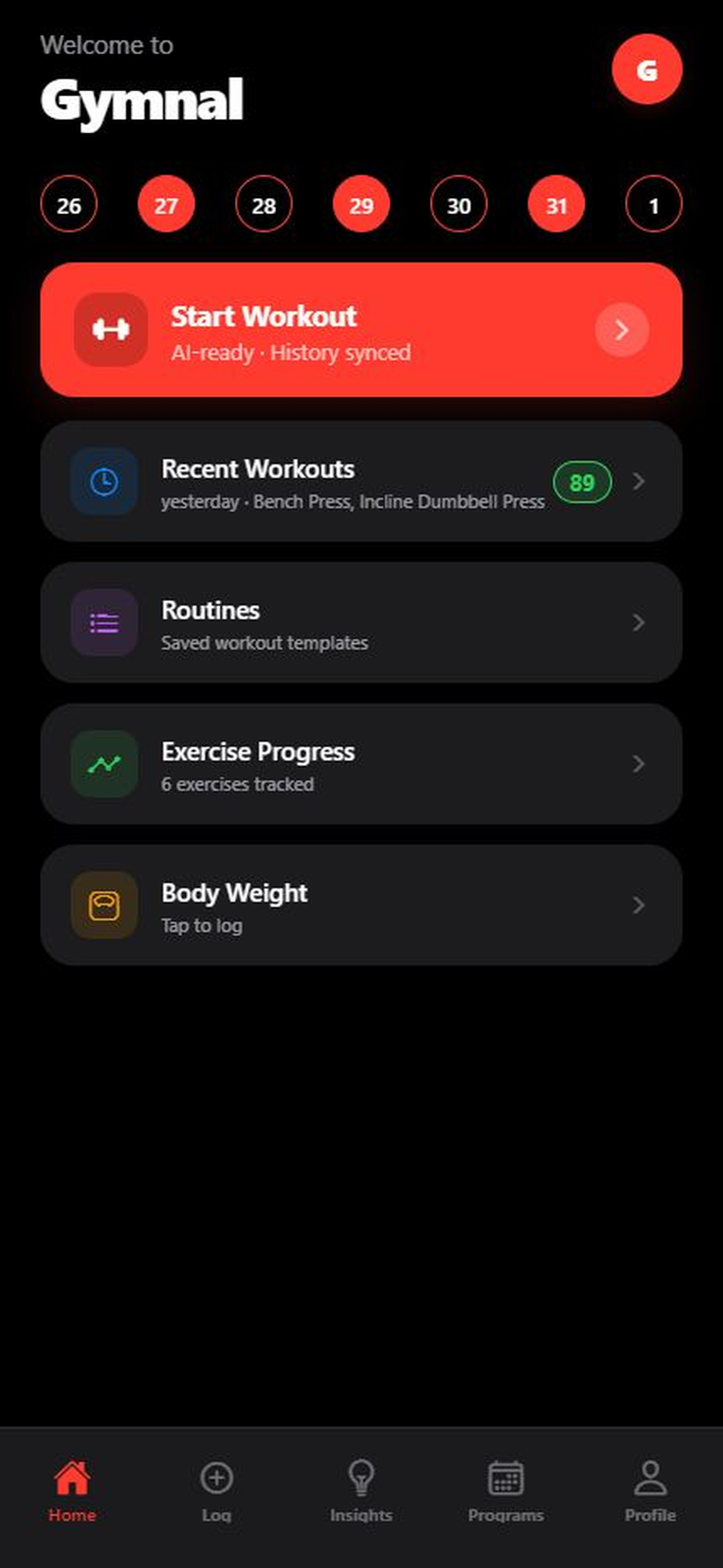
- HomeDaily health context, workout entry, recent activity, routines, exercise progress, and body weight.
- LogQuick Log, exercise search, today’s activity, Start Workout, and Load Workout.
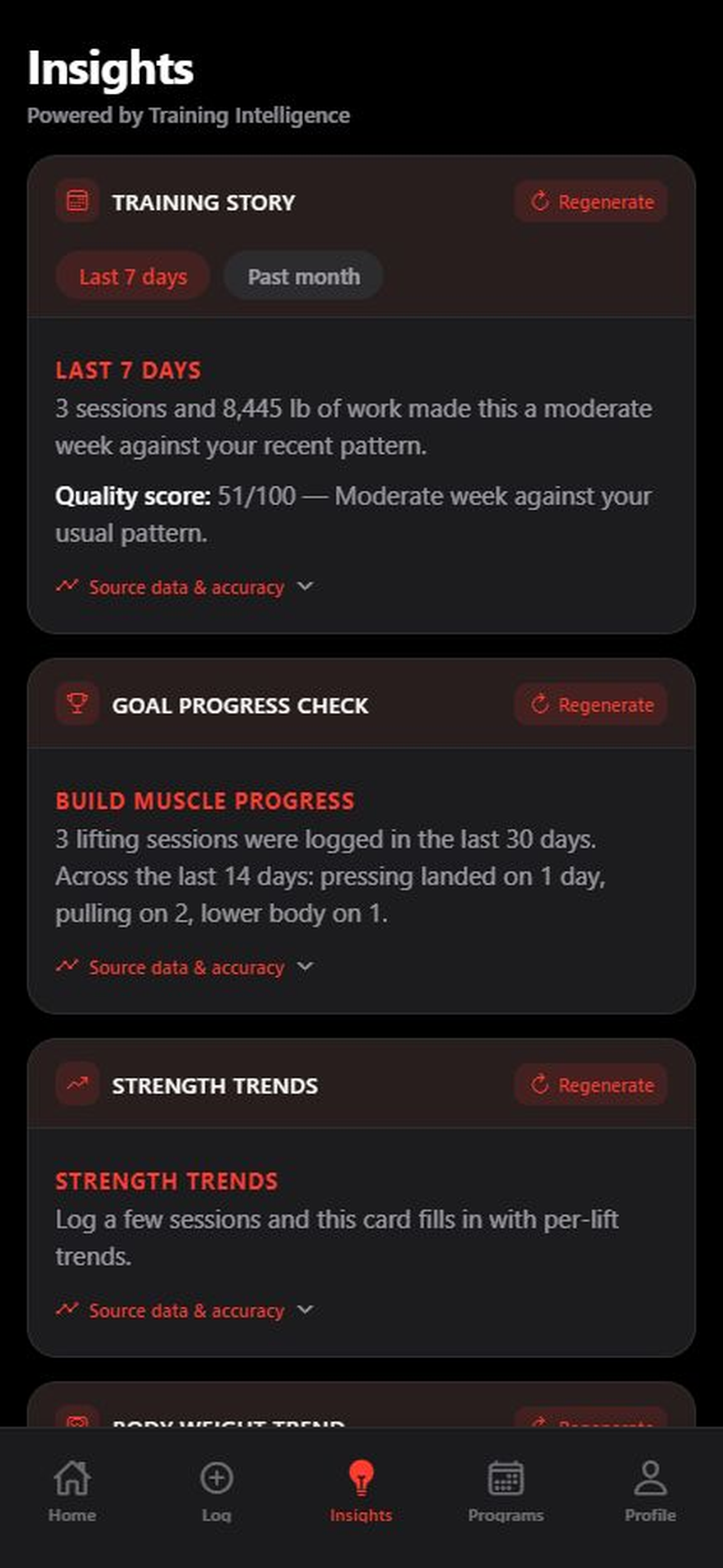
- InsightsTraining Story, goal alignment, strength patterns, body weight, recovery, and program progress for Pro and Max.
- ProgramsBuilt-in training blocks, running plans, circuits, and stretching.
- ProfileLifetime totals, records, badges, plan status, integrations, privacy, backups, and settings.
Gymnal User Guide
Find the feature.
Know the workflow.
Gymnal can be a simple workout journal or a complete view of your training. Search every major feature, follow a workflow, or browse by topic.
Ask a question in everyday language or enter a feature name. The / key focuses search. Search runs only on this page.
- 9
- Guide areas
- 50+
- Practical answers
- Local
- Your training records
Browse the guide
Start with what you want to do.
No guide topic matched that search.
Use a shorter phrase, a tab name, or the feature name shown inside Gymnal.
01
Start here
Build a useful foundation.
A few accurate settings make the rest of Gymnal clearer from the first workout.
All plansThe five tabs
Know where each part of Gymnal lives.
All plansA strong first setup
Give Gymnal the context it uses across the app.
- 1Set your goal.
Open Profile → Settings → Goal. The selected goal changes which patterns receive emphasis.
- 2Complete Your Profile.
Date of birth, sex, height, and weight support demographic scoring. Training-data-only scoring remains available.
- 3Connect Apple Health if useful.
Gymnal can read steps, active calories, heart rate, sleep, weight, and imported cardio after permission is granted.
- 4Confirm Backups.
Profile → Settings → Backups shows the daily on-device backup and its latest save time.
- 5Training Intelligence setup runs automatically on Pro or Max.
After onboarding and App Store access confirmation, Gymnal begins the one-time approximately 1.1 GB on-device file download. Workout logging remains available during setup.
All plansA simple daily rhythm
Use as much or as little of Gymnal as the day needs.
Before training: Home displays recent activity and health context. Start Workout opens the session chooser.
During training: Record completed sets with the green check. Live sessions keep their place when Gymnal goes to the background.
After training: Finish saves the session, updates progress, and opens the recap when that feature is available.
Best use
Accurate completed sets and a short session note give the history and analysis more signal than perfect-looking plans with incomplete logs.
All plansGoals and profile context
Understand what these settings change.
Goal choices include Build Muscle, Lose Fat, Improve Endurance, and General Fitness. Goal Detail can hold a more specific target.
Your profile supports score context and health calculations. Gymnal also offers training-data-only scoring when demographic comparison is not wanted.
These records remain on the device and can be erased from Privacy & Data.
iPhoneDevices and requirements
Know where the current Gymnal app runs.
The current app is built for iPhone in portrait orientation and requires iOS 15.1 or later.
There is no current Android, iPad, or Apple Watch companion app. Apple Watch cardio can still reach Gymnal through Apple Health workout import.
02
Workout logging
Capture the workout your way.
Every plan can record a complete workout with no exercise-count limit.
All plansChoose a logging path
Five entry points cover planned and unplanned sessions.
- Planned WorkoutA history-aware session or the current day from an active program.
- Use a RoutineA reusable workout template you built.
- Load WorkoutPaste workout text for an on-device preview, or import a supported file on Pro and Max.
- FreestyleEnter exercises and sets as the session unfolds.
- Log Completed WorkoutBuild a past session without a running clock.
Quick Log on the Log tab is a sixth path for a few sets that do not need the full live-workout screen.
Planned mode · All plansPlanned workouts and preferences
Open a structured session, with preference controls on Pro and Max.
- 1Open Start Workout.
Select Planned Workout.
- 2Choose the session focus on Pro or Max.
The focus chips are Push, Pull, Legs, and Cardio. Selecting the same chip again clears it. A strength focus used today or yesterday is unavailable; Cardio remains available. An active program can supply its current day instead.
- 3Review the setup.
Exercises and working weights use the available history and program structure. Every field remains reviewable before the clock begins.
- 4Start the session.
The live screen tracks set completion, rest, order, notes, and progress.
All plansFreestyle logging
Start empty and build the session as it happens.
Open Start Workout → Freestyle. Search ranks recent lifts first and includes quick-start cardio choices.
The session can be assembled before Start is pressed. Pressing Start begins the elapsed clock; every exercise and set remains editable.
Gymnal saves the active draft on the device. Returning from another app restores the workout screen and entered data.
Best use
Use Freestyle when the exercise order, equipment, or full session is not known in advance.
All plansLog a workout after it happened
Record the work without a running timer.
- 1Open Start Workout.
Select Log Completed Workout.
- 2Set the workout date.
The timer-free builder stores the selected calendar day.
- 3Enter exercises and finished sets.
Weight, reps, unilateral basis, cardio details, and notes can all be recorded.
- 4Save the workout.
The session enters history as Not timed, with no fabricated duration.
All plansQuick Log
Capture a few sets with minimal setup.
On the Log tab, search for an exercise, enter weight and reps, and press the green check. Multiple quick sets can be saved together.
Opening Start Workout while Quick Log contains unsaved entries displays a warning before those entries are cleared. Save the Quick Log first when both records matter.
Paste · All plansLoad Workout and paste-to-log
Turn written workout text into a reviewable log.
Single paste-to-log is available on every plan. Paste dates, exercise names, weights, reps, notes, supersets, and Each side labels. Parsing happens on the device and produces a preview before anything is saved.
Pro and Max also unlock bulk text import and spreadsheet import. Supported files are .csv, .xlsx, and .xls up to 10 MB; Date and Exercise columns are required, with automatic or manual column mapping.
Review the preview before import. Successful rows can be saved when another row fails, and failed rows remain identified for correction.
Imported weights are currently stored as pounds. Convert kilogram values to pounds before import.
All plansGreen checks and completed sets
The check is the record that a set happened.
Enter weight and reps, then press the green check on that row. A checked set counts toward progress, volume, scoring, records, and analysis.
Finishing with an edited but unchecked row opens a confirmation because its values have not yet been committed.
A successful strength-set check can start the rest timer. Cardio entries use their own green Log action.
All plansLeft/right and “Each side” work
Record unilateral reps without doubling the set count.
Turn on Each side for single-arm or single-leg work. Enter reps for one side; one logged set represents both left and right.
Example: 35 lb and 8 reps per side appears as 35 × 8/side. Exercise history keeps the same basis so future sessions remain comparable.
Gymnal’s set-volume ledger remains weight × reps-per-side; it does not double the total for left plus right. Separate exercise names ending in Left and Right preserve different loads or rep counts between sides.
Best use
Keep the same rep basis for the same exercise over time. This prevents a per-side set from being compared with a combined-rep set.
All plansExercise spelling and custom lifts
Gymnal learns names and common typing aliases.
Spelling correction is conservative. Gymnal offers a correction only when a longer typed name has one unique close match; short or ambiguous entries stay unchanged.
Choose Correct to “…” to save the typed form as an alias, or Keep “…” as its own exercise for an intentional custom lift. Learned names become searchable in later app sessions.
Profile → Settings → Exercise Library can rename an exercise, manage aliases, or forget a learned autocomplete entry. A rename updates matching workout history and routines; Forget leaves past workouts intact.
All plansSupersets, giant sets, and exercise order
Group adjacent exercises and control their sequence.
Use the link control between adjacent exercises to form a super set. Linking another adjacent exercise extends it into a giant set.
Use the up and down arrows on an exercise card to shift it one position. A grouped exercise that leaves its group is unlinked automatically.
The same one-step controls appear in routines and both active workout flows.
All plansManual cardio logging
Record duration and distance with cardio-aware fields.
Freestyle includes Running, Walking, Cycling, Treadmill, and Rowing Machine as quick-start choices. Cardio cards record duration and optional distance rather than weight and reps.
The built-in timer can capture elapsed duration, with one cardio timer active at a time. Manual duration accepts HH:MM:SS or MM:SS, and intensity can be Recovery, Easy, Moderate, Tempo, Threshold, or Max.
A finished cardio session can also be entered afterward through Log Completed Workout.
Apple Health workout import supplies richer Apple Watch data when available, including splits, heart-rate zones, route, elevation, and effort details.
All plansReusable routines
Save a repeatable workout without entering it again.
Open Home → Routines or Start Workout → Use a Routine. A routine stores exercise order, target sets, free-form reps, optional target weight, and notes.
Starting a routine creates a fresh workout. Editing the live session does not rewrite the saved routine.
Version 1.0.8: Latest logged weights is on by default. Each exercise uses completed loads from its latest compatible workout, preserving the routine's set count, rep targets, equipment, and each-side or carry convention. Extra sets repeat the last matching load; without matching history, saved template weights remain. The source date and session loads are shown before starting.
Turning off Latest logged weights uses the saved template weights instead. Entries remain editable, and starting a routine never overwrites its saved template.
Workout Detail can save a completed session as a routine. Long-press a saved routine to duplicate or permanently delete it.
Best use
Routines fit recurring personal sessions. Programs fit scheduled multi-day training blocks with progression and completion state.
03
History & progress
See what changed.
Every saved set feeds history, exercise records, scores, and long-term totals.
All plansWorkout history
Open any saved session and inspect every set.
Open Home → Recent Workouts → All Workouts to search by exercise or date. Workout detail displays exercises, set weight, reps, per-set volume, totals, notes, recap, and score when available.
Historical cardio can include distance, time, pace, splits, route, elevation, and heart-rate details.
All plansCorrect a saved workout
History is editable when a number or exercise is wrong.
Open the workout, then press Edit. Weight, reps, exercise names, unilateral basis, and notes can be corrected. The recalculated totals, records, badges, and progress views refresh from the saved changes.
The current editor does not change the workout date, stored duration, or existing cardio values.
Deleting a workout removes it from history and every calculation that depends on it.
History · Advanced records varyExercise Progress
See one exercise across every session.
Open Home → Exercise Progress. Sort exercises by recent activity, weight, or volume, then open one to view its session history and interactive trend chart.
Chart presets cover four weeks, three months, six months, one year, and all history. Tap a point for its value and date.
Version 1.0.8: switch between Max Weight and Best Set. Max Weight plots the heaviest completed load in each workout. Best Set plots weight × reps for the set ranked highest by estimated one-rep max, matching the Best Set record—not simply the set with the most volume. A point includes its actual weight and reps; 280 lbs × 10 is displayed as 2,800 lbs of set volume. Bodyweight-only exercises use best reps instead of a zero-pound chart.
Exercise-specific Training Intelligence uses that selected lift's completed records. Different equipment and each-side conventions remain separate; corrections to saved workouts refresh the facts.
Personal records are Pro and Max. The complete PR milestone timeline is Max.
Pro · Max recordsBest Set, PR, and e1RM
These labels measure different things.
- PRThe highest recorded weight for at least one rep. Bodyweight work uses the highest rep count.
- Best SetThe set with the highest estimated one-rep max, using weight and reps together. Bodyweight sessions use the highest rep set.
- e1RMAn estimate, not a measured max. Gymnal uses the Epley calculation and soft-caps very high rep counts.
- VolumeWeight × reps, summed across the relevant sets.
All plansSession Score
Understand the 0–100 workout score.
The personal component blends top-set quality, volume against recent history, completion, exercise variety, and effort. Cardio uses its own pace, duration, distance, heart-rate, and effort inputs when present.
When demographic scoring is enabled, age, sex, body weight, and supported lift or cardio norms form a second component. The full breakdown lives in Profile → Settings → Workout Scoring.
Training-data-only scoring removes demographic comparison.
All plansBody weight and measurements
Keep body metrics beside the training history.
Home → Body Weight and the Profile weight card open weigh-in history. The current weight screen displays pounds, and Apple Health weight can enter the same local timeline after permission is granted.
Profile → Settings → Body Measurements records chest, waist, hips, shoulders, neck, and left/right bicep, forearm, thigh, and calf in inches or centimeters.
Measurements display their recent 90-day history. Body Weight Trend appears in Insights when weigh-ins provide enough history.
Max comparison · Pro badgesWorkout comparison, badges, and profile totals
Use the wider view after individual sessions make sense.
Max can compare two sessions side by side. For every shared exercise, the comparison uses the heaviest weighted set—or the highest-rep set for bodyweight work—and displays weight and rep changes. New and missing exercises are labelled New or Dropped.
Pro and Max unlock badges for milestones such as logging, records, streaks, program completion, and broader training history.
Profile summarizes workout count, streak, volume, body weight, records, and badge progress.
04
Training Intelligence
Turn logs into observations.
Analysis runs on the device and describes the training data already recorded.
Pro · MaxWhat Training Intelligence does
It analyzes completed training; it does not make decisions for you.
Gymnal combines a deterministic analysis engine with an on-device language layer. The engine calculates scores, patterns, changes, and evidence. The language layer turns those facts into readable observations.
Workout records, prompts, and generated analysis remain on the device. Gymnal Training Intelligence is not medical care and does not replace professional judgment.
Pro · Max · Version 1.0.8Ask Gymnal by text or voice
Look up your recorded lifts and supported training patterns.
Open Insights → Ask Gymnal or Settings → Ask Gymnal. Questions include “What is my top bench press and how much did I sleep the night before?”, “What have I logged less often?”, and “What does volume mean?”. Answers label the recorded metric and source window: all history, the last 7 days, or the past 31 days.
Supported personal answers are calculated from saved records, not invented by open-ended chat, and work without the large Training Intelligence download. Missing or ambiguous records are identified. Sleep requires available Apple Health data and permission; a paired sleep record is context, not proof of a cause. This feature covers record lookups and selected Gymnal explanations, not unrestricted fitness questions or exercise prescriptions.
The microphone button starts optional English (US) on-device dictation after permission. The transcript is editable before Send. Unsupported recognition remains text-only: there is no cloud fallback, saved microphone audio, background listening, or “Hey Gymnal” wake word.
Listen reads an answer with an installed English Apple voice. Settings → Gymnal Voice has male and female preferences, a preview, and Stop audio; the preferred voice can fall back to another installed voice. These are not exclusive Gymnal voices or your selected Siri voice. Read replies aloud is off by default; spoken answers can contain workout and sleep details audible nearby.
Sent conversation text is stored on this device. The trash control clears the conversation without deleting workouts or sleep records. Saved answers describe the records at the time of the question; a new question retrieves current data.
Pro · MaxAutomatic on-device setup
Gymnal handles the one-time intelligence-file download after eligible access is confirmed.
- 1Setup begins automatically.
After onboarding and Pro or Max access confirmation, Gymnal begins downloading the approximately 1.1 GB file.
- 2Core features remain available.
Workout logging, deterministic analysis, and templates continue to work during setup and without the file.
- 3Status and recovery stay visible.
Download progress appears in the app. A paused or error state can be retried from the status display or Profile → Settings → Training Intelligence.
The file runs locally after setup. Workout records, Apple Health information, prompts, and generated analysis are not included in the file-download request.
Pro · MaxPost-workout recap
Read an observation grounded in the session just saved.
The recap receives the completed workout’s exercise list plus historical comparisons for those same exercises. It can reference volume, top sets, prior sessions, notes, sleep context, records, and program context when the data supports them.
A session note receives acknowledgment near the start of the recap. The recap is saved with the workout and can be regenerated from Workout Detail.
Best use
Short notes such as “grip failed first,” “slept poorly,” or “equipment changed” give the analysis context that set numbers cannot show.
Pro · MaxThe Insights tab
Six views connect individual workouts into patterns.
- Training StoryFrequency, completed work, volume, and recent highlights over the selected range.
- Goal Progress CheckHow the logged work aligns with the goal and goal detail on file.
- Strength TrendsRecent changes across repeated exercises.
- Body Weight TrendTrend interpretation when weigh-ins exist.
- Recovery & Muscle BalanceA readiness score grounded in recent training and available sleep context, plus recent muscle-group distribution.
- Program ProgressCompletion and workload context for the active program.
Each card can be regenerated independently. Weekly range controls change the time window for relevant cards.
Pro · MaxHow personalization develops
Gymnal needs repeated, accurate history before calling something a pattern.
Personalization begins with the first analyzed workout. The app marks five or more analyzed workouts as the point where the history has moved beyond its early state.
Learned signals can include training frequency, session timing and duration, progression, plateaus and records, volume tolerance, recovery, sleep sensitivity, and rest-day response.
Profile → Settings → Personalization displays the current learning state. The personalization record remains local.
Pro · MaxSource data & accuracy
See what supported an observation and record when context was missed.
Analysis cards can expose the workout evidence used for the response. Accurate and Missed context ratings are stored on the device.
A regeneration recalculates the response from the current saved data. Correcting a workout first gives the next response accurate inputs.
Ratings appear in Data Ownership as local analysis-feedback records and can be erased with the rest of the local data.
05
Programs & routines
Keep multi-day training organized.
Programs preserve schedule and progression; routines preserve your own reusable session.
Access variesStart and follow a program
Preview its structure before activating it.
Open Programs, select a program, and review its duration, training days, phases, equipment, and workout structure. The safety acknowledgment unlocks Start Program after the full text is read.
The current day then appears on Home and inside Planned Workout. Completing the session advances program progress.
Saved completion remains visible even when plan access later changes.
Quitting a program displays a warning and permanently removes its program progress.
Lite · Pro · MaxProgram access by plan
Starter access is broad enough for a complete training block.
Lite: High30 and 30 Day Stretch.
Pro: all 12 built-in programs, with one active non-stretch program at a time. Stretching can run alongside it.
Max: all 12 built-in programs, with one lifting and one running program active together, plus stretching. Starting another program in the same category replaces that active program.
The library includes strength, hypertrophy, running, circuits, kettlebell, stretching, and other structured formats.
Saved progress remains after a plan downgrade. Programs outside the new access or concurrency limit pause.
Starter and full-library accessCurrent program directory
Search the full set of built-in training blocks.
- Strength & hypertrophyPowerLift Phased · 57 days; 90 Day Gains · 90 days; 12 Week PHB · 84 days; GBS 90 · 90 days.
- ConditioningHigh30 · 30 days; WOD 30 · 30 days; 45 Day Kettlebell · 45 days.
- Mobility30 Day Stretch · 30 days.
- Running5K Ready · 56 days; 10K Strong · 70 days; Half Marathon · 84 days; Marathon · 126 days.
Lite includes High30 and 30 Day Stretch. Pro and Max unlock the complete directory.
Program access variesInside a program session
Use authored structure with live logging controls.
Program days can preload exercises, set counts, rep ranges, circuits, intervals, cardio, and progression context. Working weights remain reviewable before the session begins.
Exercise substitutions appear where the program defines compatible choices. Completed sets use the same green-check workflow as Freestyle.
Circuit and interval formats can include checkbox rounds, work/rest phases, station changes, and AMRAP round tracking.
All plansProgram or routine?
Pick the structure that matches the intent.
Routine: one reusable personal workout template. It has no required calendar or multi-week progression.
Program: an authored sequence of training days, phases, progression logic, and completion state.
Best use
Keep a routine for a recurring session that changes informally. Use a program when day order and block progress matter.
06
Health & Apple Watch
Bring in context without giving up control.
Health permissions stay optional and can be changed from iOS Settings.
All plansConnect Apple Health
Grant only the categories you want Gymnal to read.
- 1Open Profile → Settings → Health App.
Turn on the Apple Health connection.
- 2Choose permissions in the iOS sheet.
Steps, active calories, resting and workout heart rate, sleep, body weight, and workouts are separate categories.
- 3Use Sync Now.
The dashboard refreshes from the categories iOS permits Gymnal to read.
Gymnal cannot see which permission was denied. Review Gymnal’s Apple Health permissions in the Health app or iOS Settings; the exact path varies by iOS version.
Health display · Insights varyHow health data is used
Dashboard context and analysis stay separate from workout records.
Home displays recent steps, active calories, and sleep. Weight can enter the body-weight history. Pro and Max analysis can use sleep and recovery context when enough data exists.
Health data remains on the device. Disconnecting stops future reads; it does not automatically erase existing Gymnal records.
All plans · Version 1.0.8Browse sleep history
Read earlier nights without losing the selected date.
Open the Sleep card on Home. A horizontal swipe or the Previous/Next buttons changes the selected day; Today returns to the current date. The sleep details and preceding seven-night chart follow that selection. Vertical scrolling remains available.
History extends to the earliest sleep record available to Gymnal through Apple Health, never into the future. Missing nights, unavailable stages, and reading errors are not treated as zero sleep. Availability depends on the records and permissions supplied by Apple Health; Gymnal's combined display can differ from Apple Health's source-priority display.
All plansImport Apple Watch workouts
Bring cardio detail from Apple Health into Gymnal history.
Profile → Settings → Health App → Apple Watch workouts enables workout import. The first connection looks back up to 60 days and future syncs use Apple Health identifiers to prevent duplicates.
Supported cardio can carry duration, distance, pace, route, elevation, splits, heart-rate zones, maximum heart rate, and effort score when Apple Health supplies them.
Apple Health strength workouts are not imported. Gymnal’s workout import is currently limited to supported cardio categories.
Previously imported workouts stay in Gymnal when import is turned off.
Deleting an imported workout removes its saved external identifier, so that workout can return during a later 60-day manual sync.
07
Data & privacy
Your records stay in your hands.
Gymnal has no user-account server holding a second copy of the training journal.
All plansWhat stays on the device
Workout, body, journal, and analysis records remain local.
Gymnal stores workouts, sets, body records, notes, learned exercises, aliases, analysis ratings, personalization, and generated analysis on the device.
App Store purchase status is checked through RevenueCat. Workout and body records are not sent with that check.
After onboarding and eligible access confirmation, the one-time Training Intelligence file downloads automatically from Gymnal’s Cloudflare content host. The request contains no workout or Apple Health records, and Training Intelligence runs locally after the download completes. Cloudflare can process standard connection information such as IP address, request time, and the requested file.
All plansDaily backup and Backup Now
Keep a recovery file under your control.
Profile → Settings → Backups manages a daily file named Gymnal-Backup.gymnalbackup under Files → On My iPhone → Gymnal.
Back Up Now overwrites that local file with the current database. Share / save a copy opens the iOS share sheet for a destination you choose.
Best use
Keep a separate copy before replacing the phone, removing Gymnal, or making a large history correction.
All plansRestore from backup
Replace the current Gymnal database with a saved copy.
Open Profile → Settings → Backups → Restore from backup. Pick a .gymnalbackup file and confirm the replacement.
Restore replaces the current Gymnal data and has no undo. The app reloads after a successful restore.
Gymnal’s live database and rolling backup are excluded from automatic device backup because they may contain Apple Health records. A copy only goes to a second location when you choose one.
The rolling file does not travel automatically to a new iPhone. A separately shared .gymnalbackup copy is the recovery path for another device.
MaxExcel data export
Create a readable workbook of your records.
Profile → Settings → Data Ownership → Export workbook creates an Excel .xlsx file and opens the iOS share sheet.
The workbook contains Workout History, Exercise Progress, Body Metrics, Sleep & Health, Program History, and Summary & Stats sheets.
The export is for readable analysis and portability. The .gymnalbackup format is the path for restoring data into Gymnal.
All plansDeletion controls
Understand individual workout deletion, full erasure, and uninstalling.
A Delete Password can protect deletion of an individual workout from someone holding the unlocked phone.
Profile → Settings → Privacy & Data contains the full local erase flow. That flow uses two separate confirmations and is not controlled by the Delete Password.
Uninstalling Gymnal removes its local database. A backup saved outside the app remains wherever you placed it.
The included Max-preview status is install-local and is handled separately from portable training restores to prevent a preview from restarting through backup recovery.
Delete Password has no Gymnal account or remote reset. Full local-data erasure or reinstall clears it but also removes local records; a separately saved backup remains the recovery path.
08
Plans & access
Know what each level unlocks.
Complete workout logging remains available on Gymnal Lite.
Lite · Pro · MaxPlan comparison
The journal is free; deeper analysis and tools scale by plan.
- Gymnal LiteComplete workout logging, unlimited exercises, paste-to-log, exercise history, routines, health integration, and two starter programs.
- Gymnal ProEverything in Lite, all built-in programs, badges, personal records, file import, pre-workout context, Training Intelligence recaps, Insights, and pattern analysis.
- Gymnal MaxEverything in Pro, multiple active programs, Excel export, full PR timeline, and workout comparison.
Profile → Settings → Plan shows the current App Store pricing and feature table.
Included accessThe included 30-day Max preview
New access begins with Max features and never starts billing.
The included preview runs for 30 days on the device. It requires no App Store purchase and does not renew.
When it ends, access returns to the lasting plan underneath it—Lite when no paid plan is active, or Pro when Pro is active. Gymnal displays an end notice with the plan choices.
An App Store introductory trial is separate. It begins only after Apple’s purchase sheet is confirmed and can run at the same time rather than extending the included preview.
Pro · Max purchasePurchase, manage, and restore access
Billing stays inside Apple’s purchase system.
Open Profile → Settings → Plan for the current products and localized pricing. A purchase starts only after confirmation in Apple’s sheet.
Profile → Settings → Manage Subscription opens Apple’s subscription management. Cancellation stops renewal at the end of the paid or trial period; it does not erase Gymnal data.
The paywall includes Restore Purchases for an existing Apple entitlement that is not showing on the device.
Code-specific accessRedeem an App Store code
Use Apple’s redemption sheet inside Gymnal.
Open Profile → Settings → Redeem App Store Code. Enter the code in Apple’s sheet and complete redemption.
Access can take a moment to refresh. Closing and reopening Gymnal triggers another purchase-status check.
The plan screen displays App Store, preview, or code-based access separately so the current source is clear.
09
Troubleshooting
Recover quickly when something looks wrong.
Most issues have a local status screen or a safe recovery path.
All plansAn active workout is no longer on screen
Use the saved session or Home resume state.
Returning from another app normally opens the active workout exactly where it was left. If iOS ended the app process, Gymnal restores the saved session and displays a resume prompt or Home banner.
A draft under 24 hours old restores directly. A draft from 24 hours to seven days old opens a resume choice. Meaningful older drafts remain recoverable instead of being silently removed.
Choose Resume or Continue to reopen the draft. Start Fresh or Discard Draft removes the unsaved session only after confirmation.
All plansA set or workout is not saving
Confirm the active row before finishing.
If the green checks are missing, the workout is still staged. Press Start to activate the live completion controls.
A typed weight or rep value becomes a completed set only after the row’s green check is pressed. Finish warns when the current row still contains unrecorded values.
The “Saved on this device” status confirms the active draft reached local storage. “Save unavailable” means the draft remains on the device; keep it intact and send Support the screen name, last action, and app version from Settings.
All plansA timer did not send a notification
Current timers persist, but they do not create background alerts.
Live elapsed time and active timer state survive foreground and background transitions. The current app does not schedule rest, cardio, stretch, or interval completion notifications.
Return to the active workout to see the current timer state.
Pro · MaxA recap looks wrong or unusually short
Check the supporting records before regenerating it.
Open Source data & accuracy and compare the cited rows with the saved workout. Correct an exercise name, set, or note in Workout Detail before regeneration when the source record is wrong.
Mark Missed context when the saved data is accurate but the observation missed its meaning. That feedback remains on the device and becomes a guard for later analysis.
A short recap can reflect limited matching exercise history or cardio without distance or heart-rate context. Recap generation never controls whether the completed workout itself is saved.
Pro · MaxTraining Intelligence is unavailable
Check plan access, download state, and local storage.
Gymnal begins the one-time setup automatically after onboarding and eligible access confirmation. The in-app status and Profile → Settings → Training Intelligence display the current setup state.
A paused or error state can be retried from the status display or Settings. The approximately 1.1 GB file requires enough free local storage. Deterministic rules and templates remain available when the language layer is not ready.
Insights also require Pro or Max and at least one saved workout. Some cards need weigh-ins, sleep, repeated exercises, or an active program.
All plansApple Health data is missing
Check iOS permission, then run a manual sync.
Open Apple Health’s app-access settings for Gymnal and confirm the relevant read category. The exact path can vary by iOS version. Return to Profile → Settings → Health App and press Sync Now.
Workout import has its own switch and Sync workouts now action. Gymnal rechecks the 60-day window and uses Apple Health identifiers to prevent duplicate inserts.
Route and elevation exist only when Apple Health provides route permission and recorded samples.
All plansA lift name was corrected incorrectly
Keep the typed name or correct the saved history.
In exercise search, choose Keep as its own exercise when the correction is not the intended lift. The custom name becomes available in later sessions.
For a saved workout, open Workout Detail → Edit and rename the exercise. Profile → Settings → Exercise Library shows learned names and aliases.
Plan accessPaid or code access is not showing
Refresh Apple status without risking local workout data.
Open Profile → Settings → Plan and wait for “Checking App Store access” to finish. Use Restore Purchases when the Apple entitlement already exists.
Confirm the iPhone uses the Apple Account that completed the purchase or redemption. Network access is needed for purchase-status verification; workout records remain available offline.
If the plan still reads Lite, send Support the Plan screen, purchase date, product name, and app version. Do not include an Apple password or full payment details.
All plansBackup, restore, or storage trouble
Protect the source file before changing anything.
Check Files → On My iPhone → Gymnal for the rolling backup. Back Up Now requires available local storage. Share / save a copy can place the file in a second location.
A restore failure leaves the current data in place. Keep the original file unchanged and contact Support with the error text and file extension.
Low storage can prevent the Training Intelligence download from completing. iOS Settings → General → iPhone Storage shows the available capacity.
All plansSend a useful support report
A few details make diagnosis much faster.
Include the screen name, the exact action before the issue, what appeared, what was expected, and whether it happens again.
Profile → Settings shows the Gymnal version and build number. A screenshot or short screen recording can capture visual issues.
Use the Support form or email admin@gymnalapp.com. Remove health details that are not relevant to the issue.
Keep exploring
The guide grows with Gymnal.
New workflows and major feature changes will be documented here as they become available.
Guide updated August 22, 2026. Feature availability follows the plan label on each topic.